Adding Users and Groups
You can add operating system users and groups to a Linux-based appliance Install Profile. These will be integrated to the appliance template.
Warning
The users and groups created in UForge are not linked. If you create a user and list it as part of a specific group, you must then also create the group; otherwise the image generation will fail.
To add a user to an appliance:
Select the appliance template you want to modify.
From the
Stackpage, click onInstall Profilein the toolbox.Select
Users and Groups.Click the plus symbol next to the
Userstable. TheCreate Userpage will be displayed.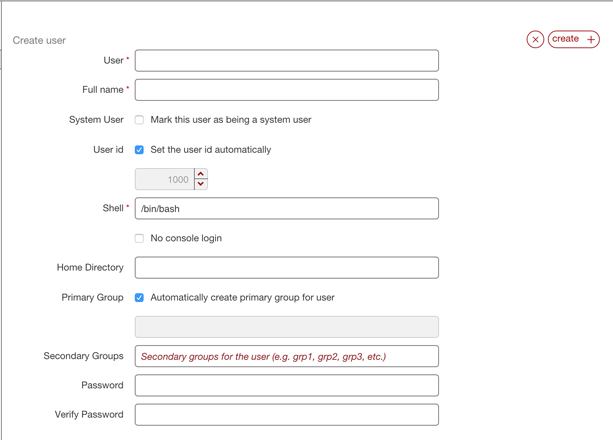
Enter a user name.
If you want to manually enter the user ID, deselect
set the user id automaticallyand enter the ID number.If you want to manually create the primary group the user is part of, deselect
automatically create primary group for userand enter the group name.Click
create.
Warning
If you create a user and list it as part of a specific group, you must then also create the group; otherwise the image generation will fail.
To add a group to a Linux-based appliance install profile:
Select the appliance template you want to modify.
From the
Stackpage, click onInstall Profilein the toolbox.Select
Users and Groups.Click the plus symbol next to the
Groupstable. TheCreate Grouppage will be displayed.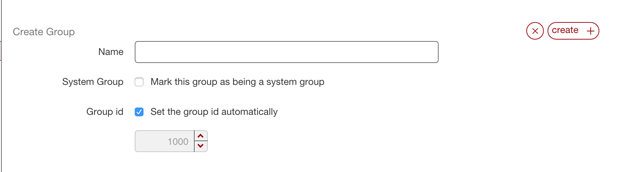
Enter a group name.
Check if you want this group to be a system group.
If you want to manually enter the group ID, deselect
Set the group id automaticallyand enter the group ID number.Click
create.